
Most people install an AI note taking app, record one meeting or lecture, glance at the summary, and never build a real workflow around it. That's a waste, because the tool itself is rarely the problem — the missing piece is knowing what these apps actually do well, which capture method to use for which situation, and how to review AI output so you can actually trust it. This guide covers all of that: how to use an AI note taker from your first recording to a searchable, reviewable note system, plus the privacy questions you should ask before trusting any app with your audio — and the situations where you shouldn't use one at all.
What an AI note taking app actually does
Strip away the marketing and almost every AI note taking app runs the same pipeline:
- Capture. You record audio, import a file, scan a page, or paste text.
- Transcript. Speech-to-text turns the audio into a word-for-word record, often with timestamps and (in better apps) speaker labels.
- Summary. A language model condenses the transcript into key points, key terms, decisions, or action items.
- Review tools. The good apps go further: flashcards generated from the content, quizzes, or a chat that answers questions about the note ("what did the professor say about enzyme inhibition?").
Understanding this pipeline matters because each stage has a different failure mode. Capture fails when audio quality is bad. Transcripts fail on jargon, names, and crosstalk. Summaries fail on nuance — they compress, and compression sometimes drops the thing that mattered. Review tools are only as good as the transcript underneath them. When something looks wrong in your notes, trace it back through the pipeline instead of blaming the app wholesale.
The reason to bother at all: when you're not frantically typing, you can actually think. Mueller and Oppenheimer's well-known study found that laptop note-takers tended toward verbatim transcription and performed worse on conceptual questions than people who processed ideas as they wrote. An AI note taker resolves that trade-off in a useful way: the app handles the verbatim record, freeing you to listen, ask questions, and jot down only your own thinking.
Choosing your capture channel
Most people default to "hit record" for everything. That's often right, but modern apps give you several input channels, and picking the right one saves rework. Here's when each wins:
| Capture channel | Best for | Watch out for |
|---|---|---|
| Live recording | Lectures, meetings, interviews happening now | Sit close to the speaker; check mic isn't covered |
| Audio file import | Recordings you already have — voicemails, old lecture files, audio from another device | Long files may hit plan limits; trim silence first |
| PDF import | Slide decks, readings, reports you want summarized and quizzed on | Scanned (image-only) PDFs may need OCR instead |
| Photo / scan (OCR) | Whiteboards, handwritten pages, textbook pages, printed handouts | Shoot straight-on in good light; verify names and numbers |
| Paste text | Emails, articles, meeting chat logs, your own rough notes | Garbage in, garbage out — trim irrelevant text before pasting |
A rule of thumb: record when the information exists only as live speech; import when it already exists as a file. If a professor posts slides and lectures over them, do both — record the lecture, import the PDF, and keep them in the same folder so the summaries cross-cover each other.
For deeper dives on the two most common scenarios, see our guides on using an AI note taker for lectures and mastering in-person meeting notes.
A first-week setup plan
Don't try to build the perfect system on day one. Spend the first week like this:
Day 1 — one real capture. Record one actual lecture or meeting (not a test clip of yourself talking). Real audio exposes real problems: distance from the speaker, background noise, jargon the transcript mangles.
Day 2 — read the transcript against your memory. Skim the full transcript once. Note what the AI got wrong — names, technical terms, numbers. This calibrates your trust level for everything that follows.
Day 3–4 — try every capture channel once. Import an audio file, a PDF, a photo of a page, and a pasted email. You'll quickly learn which channels fit your life. A sales rep might live in recordings; a grad student might use PDF import daily.
Day 5 — set up folders. Now that you have a handful of notes, create folders that match your real structure: one per course, per client, or per project. Move the week's notes into them and rename anything the app auto-titled badly.
Day 6–7 — do one review pass. Reopen the notes from day 1. Skim the summary, then test yourself on the content — with flashcards or a quiz if your app generates them, or just by explaining the key points out loud. This is where the actual learning happens: decades of research summarized by Dunlosky and colleagues rates practice testing among the most effective study techniques there is, well ahead of re-reading.
After one week you'll know your app's strengths, its transcription blind spots, and which channels you actually use. That beats any generic tutorial.
How to review AI summaries critically
This is the section most guides skip, and it's the most important one. An AI summary is a lossy compression of the transcript. It is usually right, frequently useful, and occasionally wrong in ways that matter.
The protocol:
- Skim the summary first to rebuild the shape of the session in your head. This is what summaries are genuinely great at.
- Verify critical facts against the transcript. Anything you'd act on — a deadline, a dosage, a price, an exam topic, a commitment you made — find it in the transcript before you rely on it. Summaries can flatten "we might ship in March" into "shipping in March."
- Watch for missing nuance. Hedges ("in most cases," "unless the client objects"), minority opinions, and sarcasm are exactly the things compression drops. If a summarized point surprises you, that's your cue to check the source.
- Add your own layer. Append two or three lines in your own words: what you concluded, what you'll do next, what confused you. The AI records what was said; only you can record what it meant for you.
A good mental model: the transcript is the evidence, the summary is a witness's account of the evidence. Useful, but you go back to the evidence for anything important.
Build a folder and search system so notes stay findable
An AI note taking app quietly becomes an archive of everything you've heard. That's only valuable if you can find things later.
- Folders mirror your commitments. One folder per course, client, or project — not per month, not "Misc." When the commitment ends, the folder becomes an archive.
- Rename notes within a day. Auto-generated titles like "Recording 47" are where information goes to die. A good title answers "what would I search for?" — "Biochem L12 — enzyme kinetics" or "Acme kickoff — scope + budget."
- Lean on full-text search. Because transcripts are text, search works on everything anyone said, not just your titles. Searching a client's name or a technical term across months of notes is the superpower of this whole category — but only if the notes are in the app, which is another argument for importing your PDFs and pasted text too.
- Export what needs to leave the app. Meeting minutes to your team, a summary into your report, a study sheet to print — export as text, Markdown, or PDF. Never let the app be the only home of something others depend on.
- Delete ruthlessly. Test recordings, duplicate captures, and empty notes add search noise. A five-minute weekly cleanup keeps the archive trustworthy.
Privacy questions to ask any AI note taking app
You're handing an app recordings of real conversations. Before making any AI note taking app part of your routine, get clear answers to these:
- Where is my audio stored? On the device, on the company's servers, or both? For how long?
- What happens to audio sent for AI processing? Cloud transcription means audio leaves your phone. The right answer is that it's processed and then discarded, not retained or used for training.
- Is an account required? Every account is another database with your data in it. Apps that work without one shrink your exposure.
- Can I delete everything? Both in-app and from any servers.
- What's the recording-consent law where I live? Many places require the other party's consent to record a conversation. That's on you, not the app — know your local rules before recording other people.
And know when not to use AI notes at all: confidential or legally sensitive conversations, therapy or medical appointments (unless everyone explicitly agrees), workplaces or exams with no-recording policies, and any moment where a visible recorder would change what people are willing to say. A pen still has its place.
Common mistakes to avoid
- Recording everything, reviewing nothing. A transcript you never reopen helped you zero percent. Schedule the review pass, even five minutes — memory research going back to Ebbinghaus (and replicated in 2015) shows most forgetting happens within the first days, so an early review pays disproportionately.
- Trusting summaries for load-bearing facts. Covered above; it bears repeating.
- Zoning out because "the app's got it." The app captures words, not understanding. Stay engaged; let it capture the verbatim layer only.
- Ignoring audio quality. Two meters closer to the speaker improves your transcript more than any setting in the app.
- Never testing yourself. If your app generates flashcards or quizzes, use them — that's the feature with the strongest science behind it. Here's how quiz generation works and why it beats re-reading.
How this looks in Steno
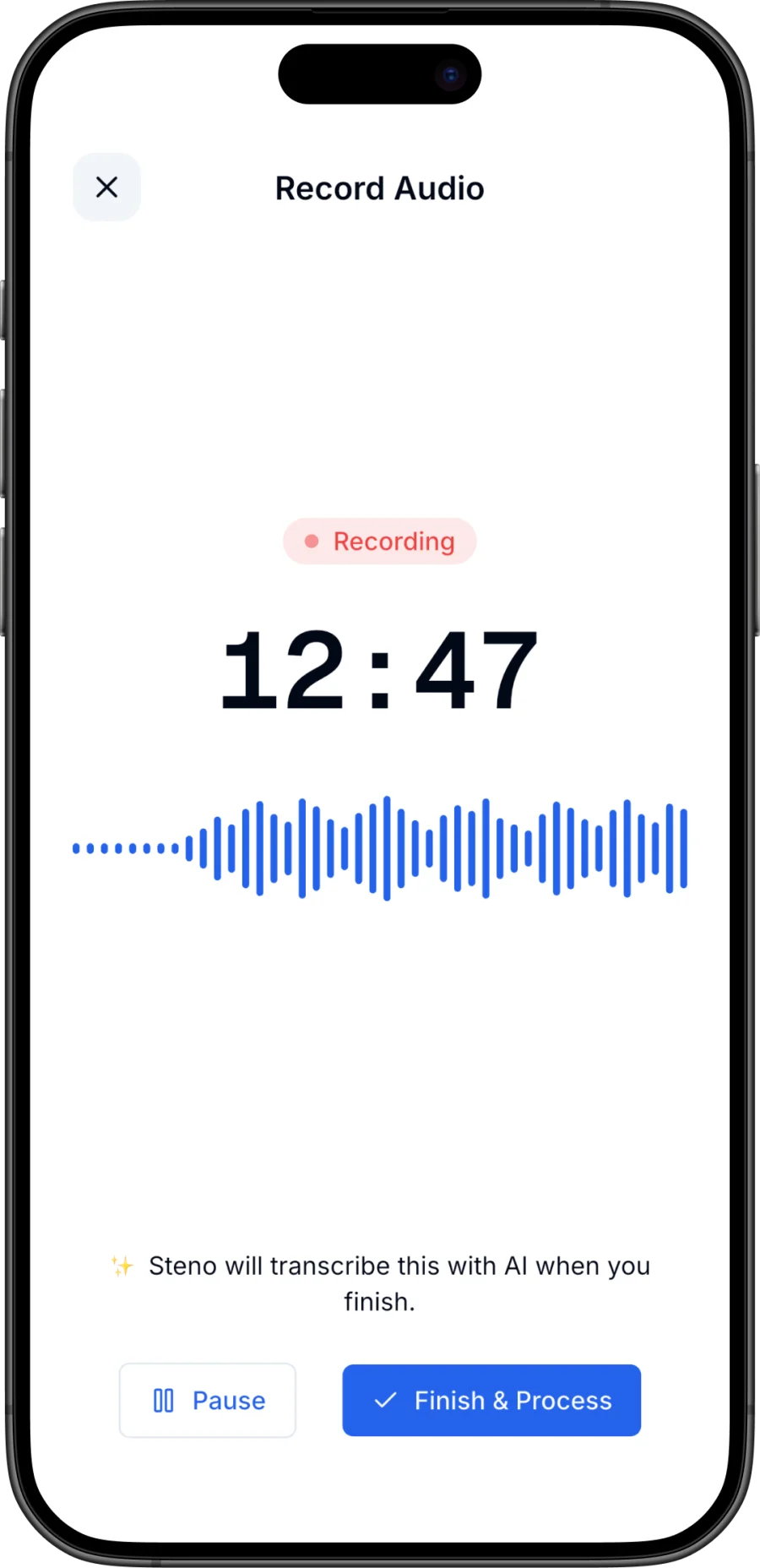
Steno is our AI note taking app for iPhone, and it's built around exactly the workflow above. All five capture channels live behind one button: record live audio (with an on-device transcript preview while you record — recordings save continuously to disk, so a crash or dead battery doesn't lose them), import an audio file, import a PDF, scan a page or whiteboard with the camera, or paste text.
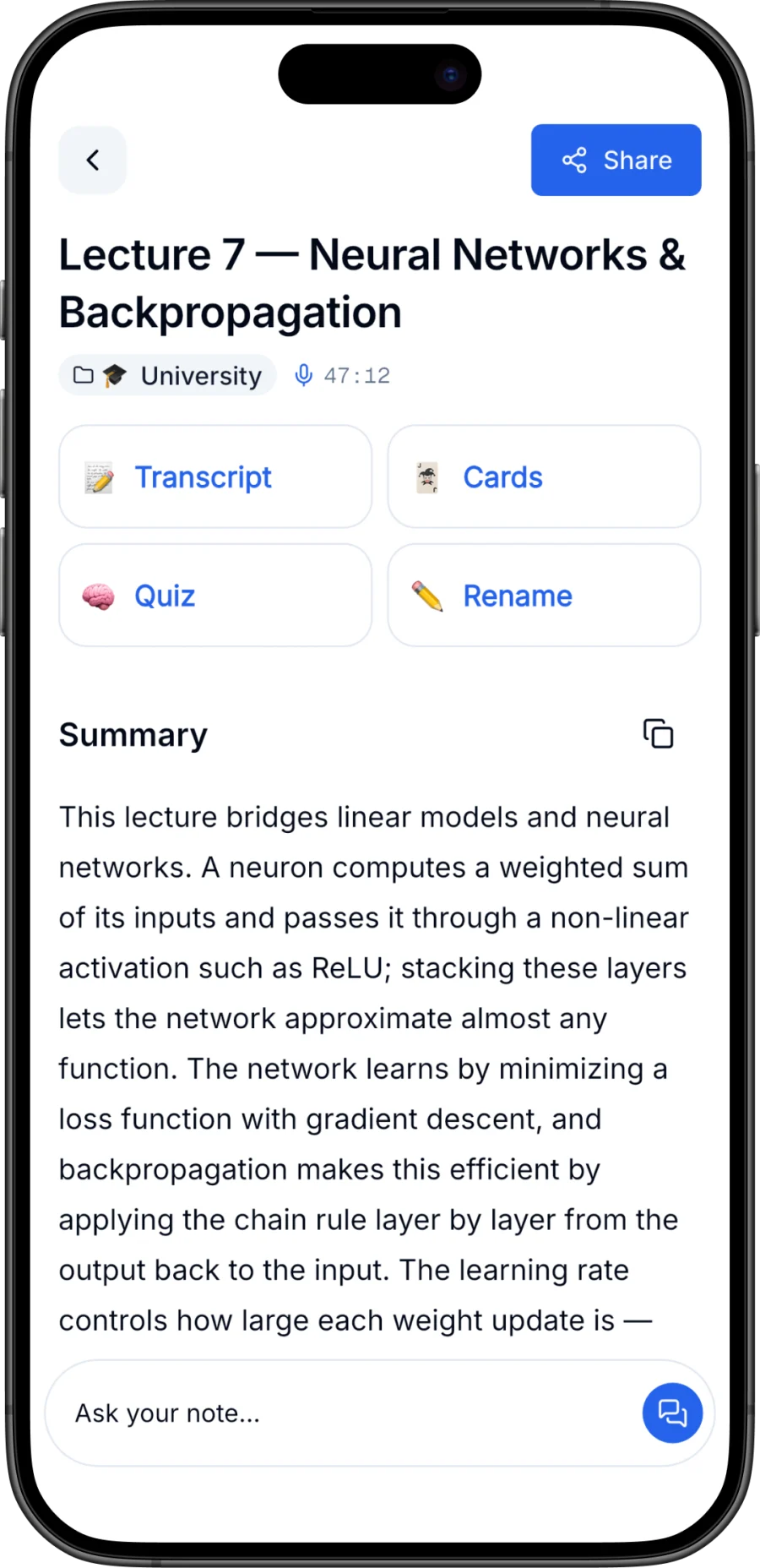
Every capture becomes a note with a full transcript and a structured summary with key points and key terms. You choose the summary depth: Short and Medium levels are free, and Steno Pro adds a Detailed level plus a "Simplify" mode that rewrites the content in plain language. Pro also adds speaker labels on transcripts, a scored multiple-choice quiz, and a chat that answers questions about the note. Flashcards come with every note — the first 10 per note are free.
Organization follows the system from this guide: folders with emoji and color, rename, full-text search across every note, and export to text, Markdown, or PDF. On privacy, Steno takes the positions this guide told you to demand: no account required, notes stored on your device, and audio sent for AI processing isn't kept afterward. The free plan includes a monthly AI transcription allowance (with on-device fallback) and up to 15 minutes per recording — enough to run the whole first-week plan before spending anything.
Download Steno for iPhone and start with one real recording today. Curious how it stacks up against other tools? See our honest comparison of the best AI note taking apps.
Frequently asked questions
How do I use an AI note taker for the first time?
Start with one real recording — an actual lecture or meeting, not a test clip. Read the transcript afterward to see what the AI gets right and wrong, then try the other capture channels (audio file, PDF, photo, pasted text) over your first week. Build folders only after you have a few real notes.
Are AI note taking apps accurate?
Transcription is very good in quiet conditions with clear speech, and weaker on crosstalk, heavy accents, names, and jargon. Summaries are reliable for structure and main points but can drop nuance. The practical rule: use the summary for orientation and verify any critical fact — dates, numbers, commitments — against the transcript.
Can I use an AI note taking app without recording audio?
Yes. Most good apps accept multiple inputs: import an audio file you already have, import a PDF, scan a printed or handwritten page with your camera, or paste text. You get the same transcript-summary-review pipeline without recording anything live.
Is it legal to record lectures and meetings?
It depends on where you are and the setting. Many jurisdictions require consent from the people being recorded, and schools and companies often have their own recording policies. Ask permission as a default — most professors and colleagues say yes, and asking keeps you clearly in the right.

